
Club email is the email you send from the Console to members — free text, a saved template, or the notification that goes out when a tournament opens for sign-ups. This page is about how it is sent and how you set up the sender. When to pick email over posts is covered in Keeping the club posted.
Who receives it?
Active members with an email address who have not opted out. The Console tells you how many are skipped before you send, and you can narrow the recipient list with the checkboxes — but never widen it past the opt-outs.
You as the sender are not exempt. Send to just yourself the first time and you will see how the email looks to members.
Two ways to send
The standard sender is DealMeIn’s own. It needs no setup and is a Premium feature.
The club’s own email account means the email leaves from the club’s own address, through the club’s own email provider. Members see the club’s name and address as the sender, and replies land where the club reads them. Because the club then carries the delivery itself, this also works without Premium.
Which one is active is shown at the top of the email page under Sender.
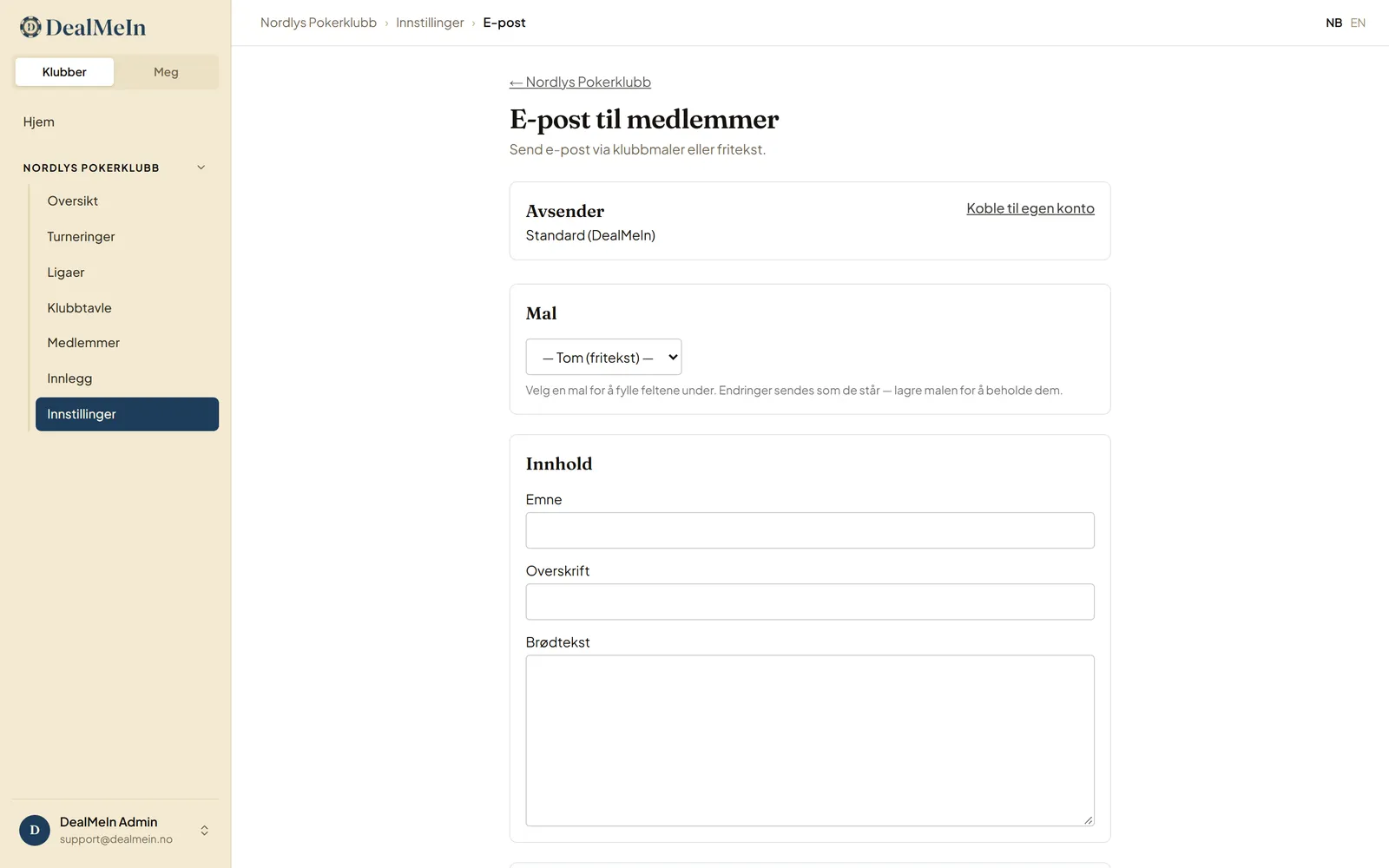
Connect the club’s own email account
Only the club owner can set up the account. Administrators can send through it afterwards, and see the setup, but cannot change it.
- Open the club in the Console, choose Email members and press Connect own account under Sender.
- Fill in the details from your email provider:
- SMTP host and port — usually port 587 with STARTTLS, or 465 with TLS.
- Username and password for the account. See the section on app passwords below.
- Sender address and sender name as members should see them.
- Reply to if replies should go to a different address than the sender. Optional.
- Press Save. The password is stored encrypted and never shown again — leave the field blank next time and the saved one is kept.
- Enter an address under Send test message and press Send test. If the message arrives, the setup is ready. The result of the last test is also shown on the email page.
App passwords with Gmail and Microsoft 365
Gmail and Microsoft 365 reject the normal password over SMTP. Create a separate app password in their account settings — with Google under Security, and only once two-step verification is on — and use it in the password field. Gmail also always sets its own address as the sender, so use the Gmail address as the sender address.
Values for Gmail: host smtp.gmail.com, port 587, STARTTLS, username is the full Gmail address.
Email not arriving?
- “Sign-in rejected” — wrong username or password, or a normal password where the provider requires an app password.
- “Could not reach the server” — check host, port and encryption. 587 goes with STARTTLS, 465 with TLS.
- The email lands in members’ spam — the sender address’s domain should have SPF and DKIM set up at the provider. That is done by the provider or whoever manages the domain, not by DealMeIn.
If the account rejects a send, the send stops and the Console says so. Nothing is sent from the standard sender instead — email always goes from the sender the club has chosen.
Turn off or remove the account
Untick Use own account for the club’s email to keep the setup but send via the standard sender again. Remove setup deletes the account from DealMeIn entirely.
Privacy
The account details are stored encrypted and used only to send the club’s email. Email sent from your own account goes through the club’s provider, under the club’s agreement with it — see the privacy policy.